The decision this helps you make
The same image can need different alternative text in different places. A product detail, a linked portfolio thumbnail and a decorative background do not perform the same job. This worksheet begins with the image’s purpose in the page rather than a target keyword. Use it while editing content and again after the image is placed in the actual layout. It is a decision aid for common situations, not a complete accessibility audit or a substitute for checking the implemented markup.
Describe the meaning or function that matters in this context. W3C’s image decision tree distinguishes informative, functional, decorative and other image situations. Our worksheet adds a content-review record so the writer and developer can agree how the image should work. A filename, keyword list or description of every visible object is not automatically useful alternative text.
Useful alternative text starts with what an image contributes to this page, not what keywords its filename could contain.
The working model
Six decisions to record
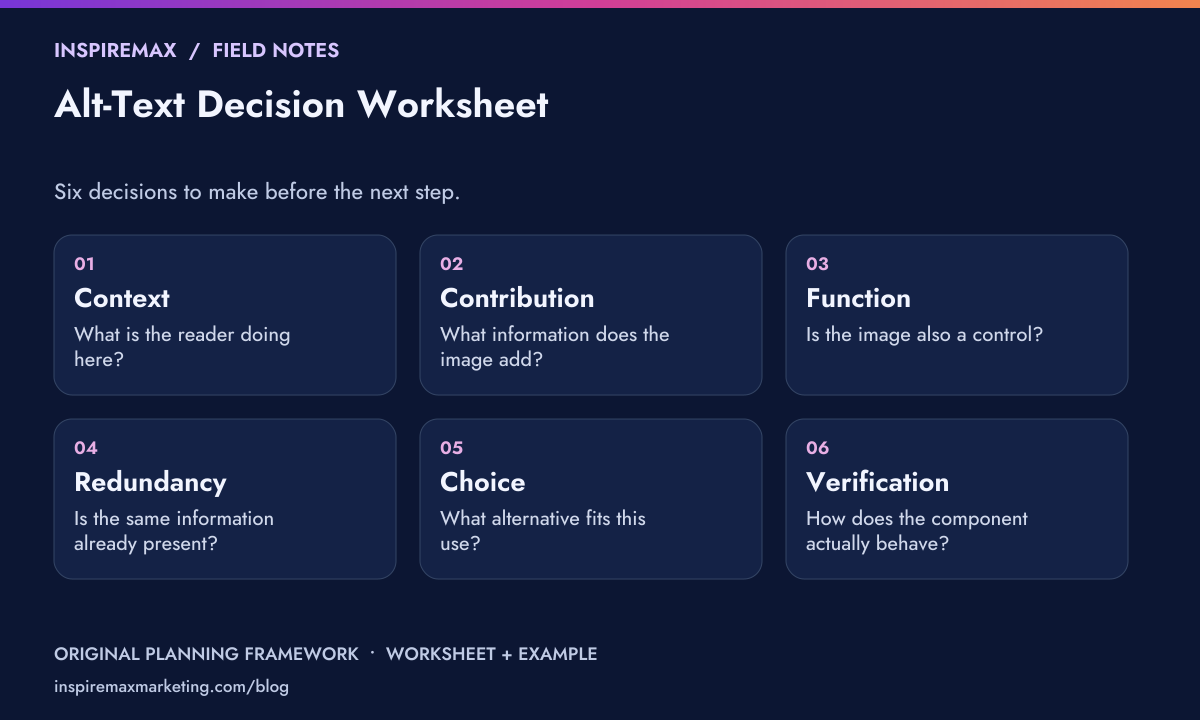
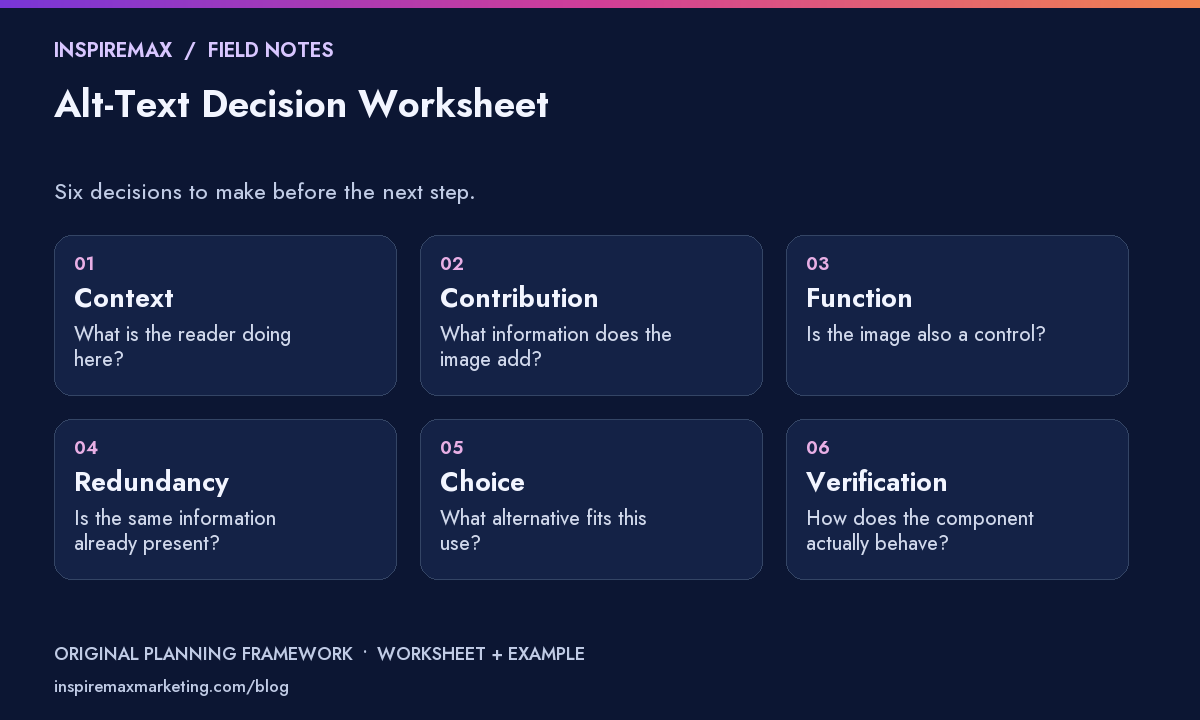
Use the questions below with the actual project information. The examples are illustrative, not client results. Download the CSV to record your answers, supporting information, decision owner and status.
| Decision | Question to resolve | Illustrative example |
|---|---|---|
| Context | What is the reader doing here? | Comparing a product detail or exploring a project |
| Contribution | What information does the image add? | A visible feature not otherwise explained |
| Function | Is the image also a control? | A link to a clearly identified portfolio item |
| Redundancy | Is the same information already present? | Review the relationship with adjacent text |
| Choice | What alternative fits this use? | Useful description, functional name or empty alt as appropriate |
| Verification | How does the component actually behave? | Check markup and the resulting accessible name |
Step 01
Read the surrounding content first
Identify what the image adds beyond adjacent words. A caption may already explain the subject, while a detail image may convey information missing from the paragraph. Consider the page as a whole before deciding which description is useful.
Step 02
Identify function and information
If the image is a link or control, review the destination or action it communicates. If it is informative, describe the relevant information. If it is truly decorative, discuss the appropriate empty alternative in the implementation rather than forcing a description into every image.
Step 03
Verify the result in the page
Inspect the rendered component and how its accessible name is formed. Adjacent text, captions and links can affect the result. Keep the chosen text associated with the actual image and context, especially when the same asset is reused in another part of the site.
Apply the method
A worked example
Illustrative example: a close view shows the control used to adjust a product. On an instructional page, the relevant information is the control and its location. In a decorative montage beside text that already explains the process, the same file may serve a different purpose. Do not automatically copy the original alternative text into every placement. Review the image’s job and implementation each time, with W3C’s decision tree available for the cases that need a more specific treatment.
Before you call it complete
- Has the surrounding content been read?
- Is the image's information or function identified?
- Are keyword lists avoided?
- Are decorative decisions intentional?
- Has the actual component been checked after implementation?
Reference and attribution
This is an original InspireMax editorial framework, with a primary reference for the related guidance: W3C WAI: image text alternatives decision tree ↗. The worksheet and examples are planning aids, not measured performance benchmarks.
Cite this resource
InspireMax Marketing. “The Alt-Text Decision Worksheet: Describe the Image's Job in Context.” November 11, 2026. https://inspiremaxmarketing.com/blog/alt-text-decision-worksheet/
Found something that needs correction? Tell us which resource and detail to review.
Put the plan to work
Planning a project in Greater Milwaukee?
InspireMax brings strategy, design and production together. Tell us what you are trying to accomplish, what you already have and the timing you are considering. We will discuss the scope and practical next steps.