The decision this helps you make
An image approved in one layout can lose an important label or product edge when it is placed in another. The crop calculator shows the dimensions retained by a centered crop to a chosen aspect ratio. It helps a team discuss capture space and export needs before a large image set is prepared. It does not detect the product, choose the best composition or certify that a marketplace will accept the file. The actual subject still needs a visual review.
Treat crop geometry and composition as separate checks. A mathematically valid crop can remove the very detail the image is meant to show. Google’s Merchant Center image guidance is a useful destination-specific reference for product imagery. Our calculator provides transparent geometry for planning; current platform rules, subject accuracy and readability require separate review.
A crop calculation describes the rectangle; a visual review determines whether the product still makes sense inside it.
The working model
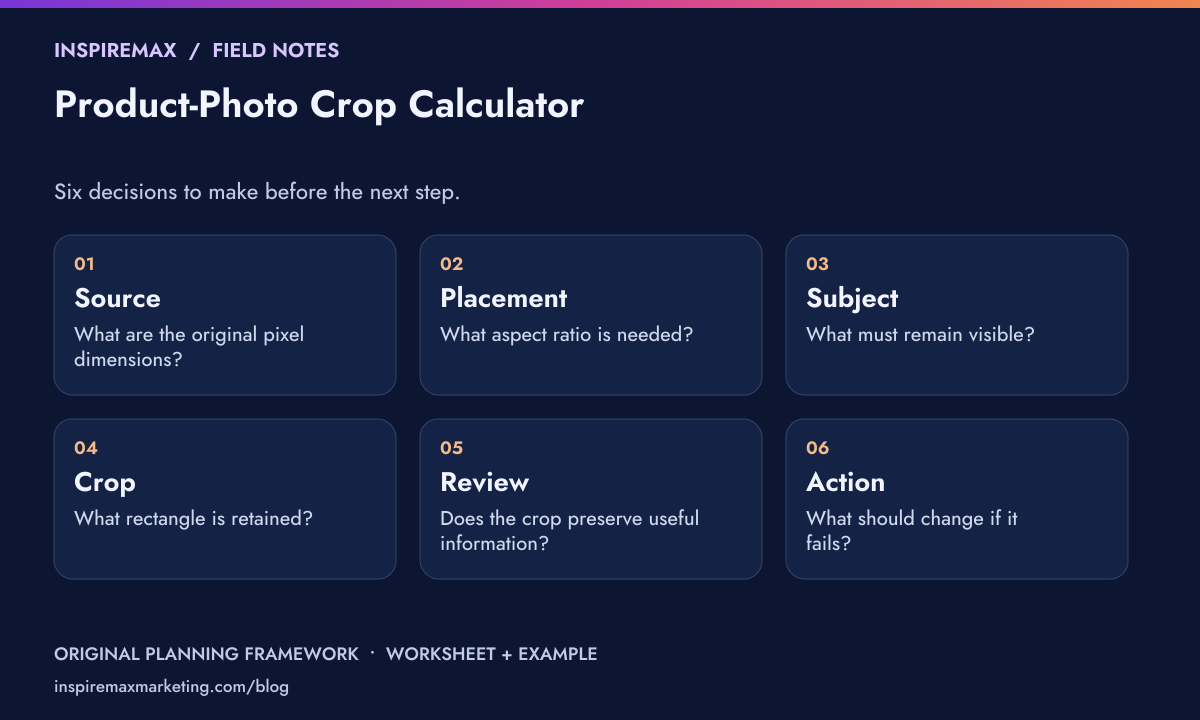
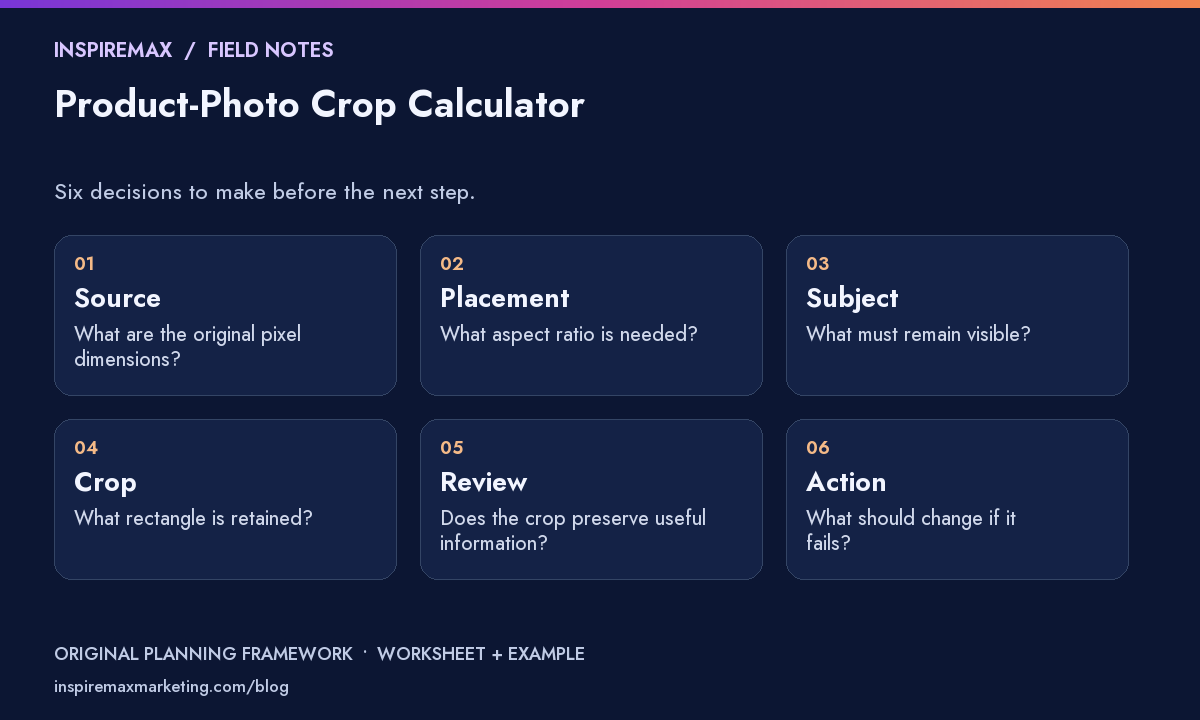
Six decisions to record
Use the questions below with the actual project information. The examples are illustrative, not client results. Download the CSV to record your answers, supporting information, decision owner and status.
| Decision | Question to resolve | Illustrative example |
|---|---|---|
| Source | What are the original pixel dimensions? | Use the actual file, not its preview size |
| Placement | What aspect ratio is needed? | A defined website or campaign slot |
| Subject | What must remain visible? | Product edges, a label or an important feature |
| Crop | What rectangle is retained? | A centered geometric estimate |
| Review | Does the crop preserve useful information? | Inspect the real image at display size |
| Action | What should change if it fails? | Reframe, select another image or plan another capture |
Try the worksheet
Compare a crop
This estimates the largest centered rectangle at the target ratio. It does not locate the subject or assess image quality.
This planning tool does not submit a project inquiry. Keep sensitive information out of its inputs.
Step 01
Record the real source dimensions
Use the original image dimensions rather than the size of a preview on screen. Identify the orientation and the important detail that must remain visible. If the source file is unavailable, mark the calculation provisional instead of inventing a resolution.
Step 02
Compare the intended ratio
Choose a target ratio that matches the actual placement. The calculator retains the largest centered rectangle at that ratio and reports the approximate share of source pixels retained. It does not move the crop around a subject or measure visual quality.
Step 03
Inspect every important composition
Open a representative crop and check product edges, labels, detail and text-overlay space. A consistent template can still need different framing for products with different shapes. Record a capture or export adjustment when the geometry cannot preserve the required information.
Apply the method
A worked example
Illustrative example: a 4,000 by 3,000 image cropped to a square retains a 3,000 by 3,000 rectangle, or 75 percent of its source pixels. That does not mean 75 percent of its useful information survives. A product near the edge could lose a critical feature. Inspect the actual composition and move or change the crop where the design allows it. If a platform needs a different presentation, confirm that requirement before preparing the full set of exports.
Before you call it complete
- Are source dimensions accurate?
- Does the ratio match an actual placement?
- Are important details identified?
- Has the real crop been visually reviewed?
- Are platform requirements checked separately?
Reference and attribution
This is an original InspireMax editorial framework, with a primary reference for the related guidance: Google Merchant Center: product image guidance ↗. The worksheet and examples are planning aids, not measured performance benchmarks.
Cite this resource
InspireMax Marketing. “The Product-Photo Crop Calculator: See What an Aspect-Ratio Change Removes.” November 14, 2026. https://inspiremaxmarketing.com/blog/product-photo-crop-safe-zone-calculator/
Found something that needs correction? Tell us which resource and detail to review.
Put the plan to work
Planning a project in Greater Milwaukee?
InspireMax brings strategy, design and production together. Tell us what you are trying to accomplish, what you already have and the timing you are considering. We will discuss the scope and practical next steps.